using Milk First
How to export your data
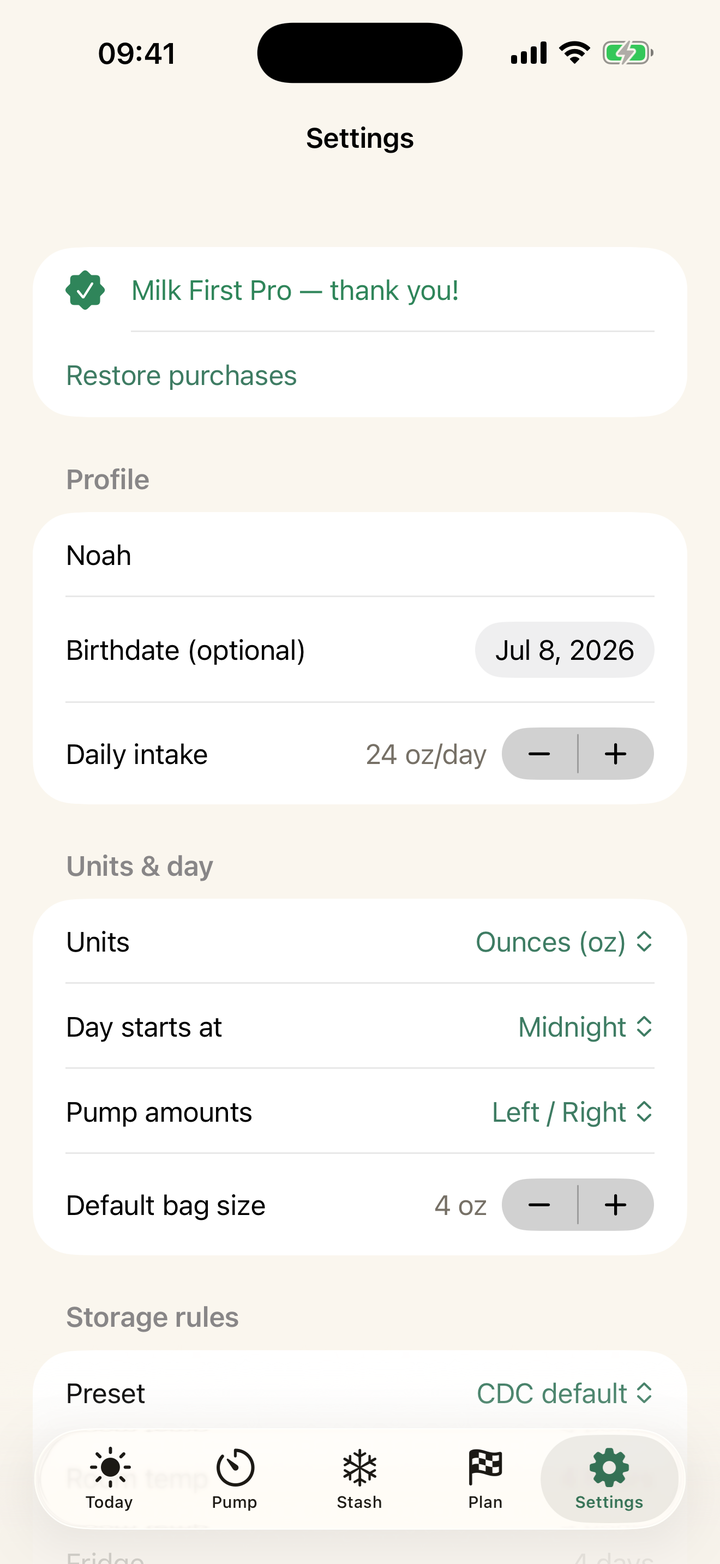
Quick answer: Settings → Data → Export CSV (Pro). You get your complete pump sessions and stash inventory as spreadsheet-ready files, shareable by any iOS share route: AirDrop, email, files. Your data was always yours; export just hands it over in bulk.
What the export contains
Sessions with dates, durations, and amounts; containers with pumped dates, locations, labels, statuses, and clocks. It opens in Numbers, Excel, or Sheets, which makes it the right handoff for an IBCLC reviewing your week, a daycare wanting an inventory, or a co-parent running the freezer while you travel.
No account, and exit rights
Milk First keeps data on your phone with no cloud copy, so the export is also your backup and your no-hard-feelings exit: every ounce of history leaves with you, readable anywhere, forever.
Every guide on this page is two taps in the app. Download free and try it with your own stash.
Get Milk First free